
Transition to New Online Grants Portal
The County Foundation is transitioning several of our grant programs to a new online grants portal.
The grant programs transitioning to our new grants portal moving forward will include the Municipal Community Grants, PEC Arts Fund, Built Heritage Fund, Huff Family Fund, and our Vital Impact Fund as the portal is geared specifically toward community organizations applying for funding. For the other grant programs that we administer, we will continue to use our previous system.
The new system will launch with the 2026 Vital Impact Fund.

How to Add Collaborators - Allows for multiple staff members to access and collaborate grant applications and reports.
Troubleshooting - We are here to help!
New Grants Portal - What You Need to Know
- One place for the entire grant process — Applicants can apply, submit reports, and access funding information all through one portal.
- Grant history maintained — All organizations go through staffing and leadership changes over time. The history and information on past and current grants will be available in the portal so this is easily available and reduces confusion for onboarding new contacts.
- Features to make applying easy —Applications that you are working on can be saved, multiple team members can work collaboratively on applications and reports, and the highly-requested ability to use bullet points is now available!
- Clear deadlines for follow ups — Not sure what items are outstanding? Your current to-do's for follows up like grant agreements and reports will be listed in the portal. You will also receive automatic reminder emails for upcoming follow ups that are due soon.
- Ability to proxy into organization accounts —TCF Staff can proxy into accounts, so we can preview applications or troubleshoot problems by seeing what you are seeing.
- Characters instead of word limits —Previously our application forms used word limits but (unfortunately) the new system has character limits instead. This isn't something we can change, but we have tried to share what the anticipated word limit is.
- Starting fresh with some exceptions - Historical data (pre-transition to this new system) will not be carried over. The exception will be grants where interim or final reports are outstanding. TCF staff will begin transitioning some of these "follow up" tasks into the new system over the next several months, but you will not see these visible at launch and you will be notified if this impacts you.
Getting Started
To access the new system, please visit:
- https://www.grantinterface.ca/Home/Logon?UrlKey=peccf
- Select Create A New Account to complete the registration process and create your login credentials.
Add Users to Existing Organization Account
As part of our new system, organizations can allow multiple staff members to access grant applications and reports.
After you have made an account for your organization, you can add Users to an existing organization account.
- Click Organization History or the organization name.

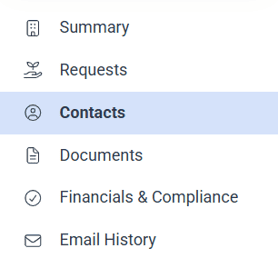
2. Click the Contacts tab on the left.
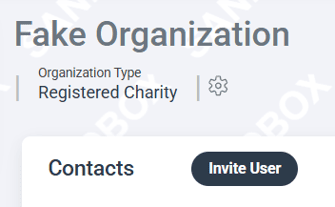
3. Select Invite User.
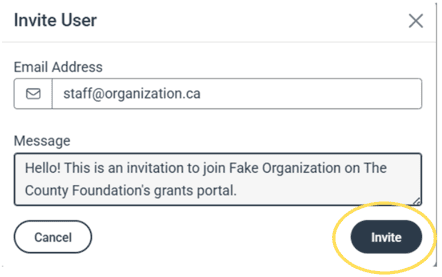
4. Enter an Email Address and Message, and then click Invite.
How to Add Collaborators
- View – The collaborator can view each form in the request to which the applicant has access.
- Edit – The collaborator can view and edit each form in the request to which the applicant has access.
- Submit – The collaborator can view, edit, and submit each form in the request to which the applicant has access.

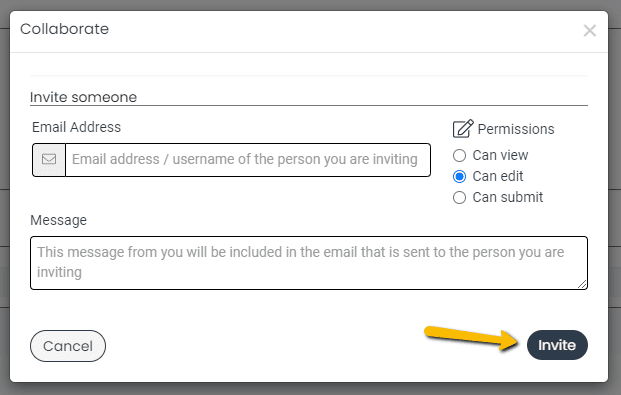
- Enter the email address of the person being invited to collaborate on the request.
- Enter a message to that person, including any specific instructions about questions they need to complete or review.
- Select the permission levelfor this collaborator.
- The permission levels are view, edit, and submit.
- These collaborator permissions apply to all forms within the request such as the application and any follow ups assigned to you. If edit is selected, for example, the collaborator can edit any forms within the request.
- The system will send an email invitation to the collaborator containing the message and a link to log on.
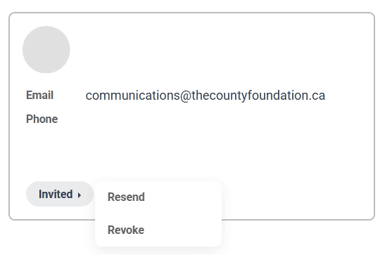
- View the status of the invitation to see if it has been accepted.
- Resend the invitation.
- Edit the collaborator’s permission level.
- Remove the collaborator from the request.
Manage Invitations - Click Collaborate again to manage any collaborators invited.
Additional Info on Collaborations
- If two users are editing the same form concurrently, the changes saved will be those made by the last user to click save.
Applicants should avoid working simultaneouslyon the same form to prevent overwriting each other's changes. - Once the form has been submitted, no further changes can be made.
Troubleshooting
- Change can be hard. We recognize this and we are here to help!
- If you have any challenges navigating the new system, email our Grants Manager, Gillian Armstrong (g.armstrong@thecountyfoundation.ca) for extra assistance.
- TCF Staff can now Proxy as your account and see what you are seeing on your end. This makes it easier and faster for us to answer questions and provide support without you having to navigate through multiple steps or try to explain what you are seeing.